Compression you can see
Tune quality against the output file size instead of guessing from a percentage.
Create a low quality image with controlled compression, pixelation, and deliberate artefacts, without sending the source file anywhere. Choose a preset, compare the byte count, and download the version you mean to make.
Your image stays on this device
No account or watermark
Start with a preset or adjust each control. The original image is never changed.
JPG, PNG, or WebP up to 25 MiB. It stays on your device.
Waiting for an image
A low quality image and a smaller image are not always the same thing. Sometimes you need a file that fits an upload limit. Sometimes you need the unmistakable crunch of a heavily recompressed image. This tool lets you decide which data to lose and see the trade-off before you export.
Use it when the low quality image is intentional, not when smart compression should hide every change.
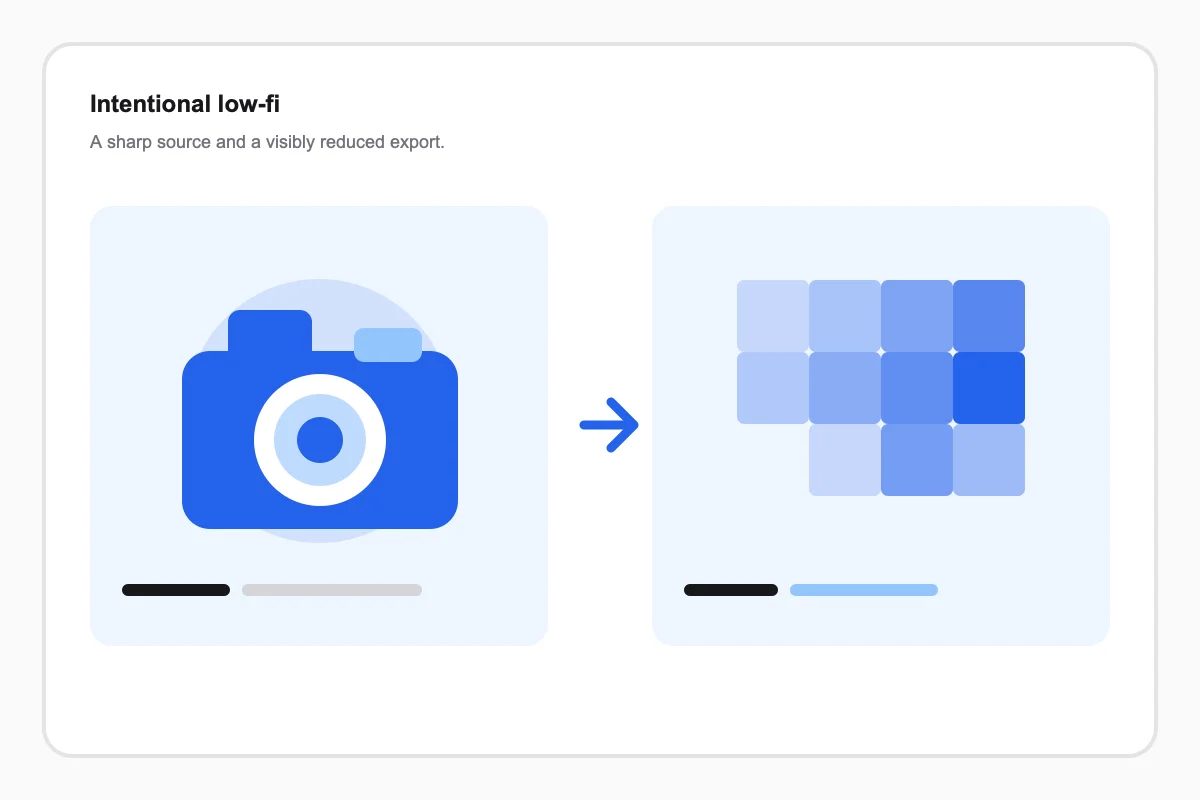
Start with the outcome you need. Then adjust only the setting that explains the change you want to see.
Tune quality against the output file size instead of guessing from a percentage.
Use pixel blocks, colour push, and noise as an effect rather than an accident.
The source file, preview canvas, and export remain in this browser session.
There is no hidden optimisation step. Pick an image, pick the type of damage you want, inspect the result, and export it.
Drop, choose, or paste a JPG, PNG, or WebP image.
Start from a preset, then tune quality, size, and distortion.
Read the byte count and compare both frames before downloading.
These starting points help you choose the first change. Compare the result before combining controls.
Start at Web 200 KB, then choose the smallest readable result.
Use Quick Compress when a chat needs the image, not every pixel.
Use Pixelated when visible blocks are part of the composition.
Use Deep Fried when blown-out colour and compression are the joke.
The best first move depends on whether the file size, image detail, or visible texture is the real constraint.
The editor runs locally. These details explain what that means for your file and your export.